How do I make a video look like a Polaroid?
Choose the Polaroid look. It adds an off-white frame with a deep bottom edge; type in Caption to write under the picture.
Free · runs in your browser
Turn a clip into a moving Polaroid, a strip of film or a mounted print. Add a caption, choose the colours, and keep the sound.
To add a frame to a video, open it above and choose a look: this page starts with Polaroid, a white instant-photo frame with a deep bottom edge. Type a few words into Caption to write in that edge, then press Export video. Film strip and Shadow card are one tap away under Look.
A frame tells people how to read a clip. A Polaroid says holiday and memories; a film strip says cinema or a throwback; a card with a soft shadow says portfolio. Each one is drawn into the video itself, so it looks the same wherever the file goes.
Drop the video on the tool. This page starts with the Polaroid look.
Choose Polaroid, Film strip or Shadow card under Look; each preview shows your own clip.
With Polaroid, type in Caption. Under More options you can change the Font (Sans, Serif, Mono or Hand), Text size and Text colour.
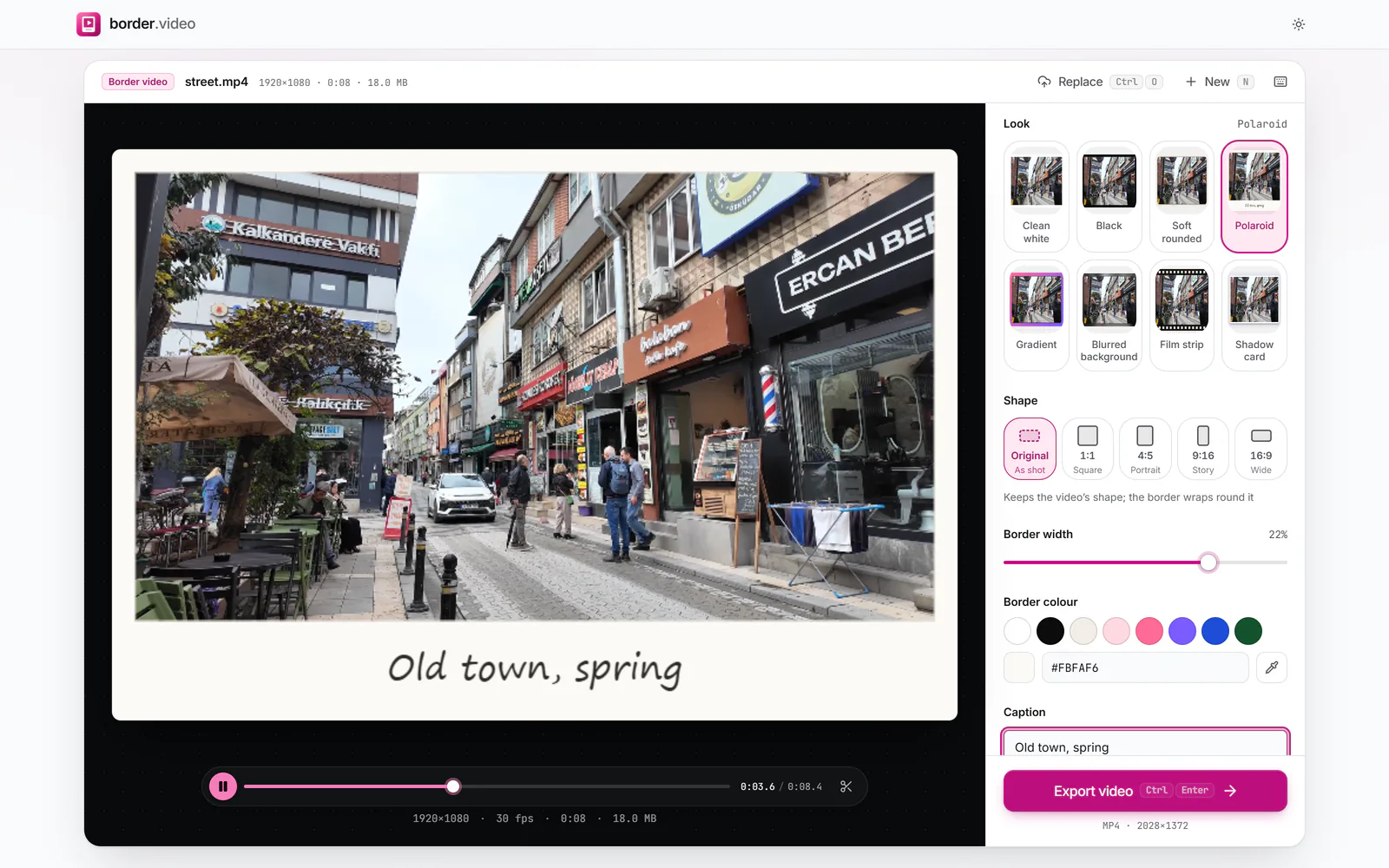 (enlarge image)
Type in Caption to write in the Polaroid edge.
Change Border width or the colours if you like, then press Export video.
An off-white border, narrow on three sides and deep at the bottom, like an instant photo. The caption sits in that bottom band in a handwriting-style font by default. For a square instant-photo look, set Shape to 1:1 and lower the side widths.
Dark bands above and below with rows of rounded sprocket holes. The holes are sized to the band, so a deeper top and bottom edge (under More options, with Same width on every side turned off) gives bigger, bolder perforations.
The video on a white card with an inner margin, lifted off a pale grey background by a soft shadow. Change the card colour with Padding colour and the depth with Drop shadow.
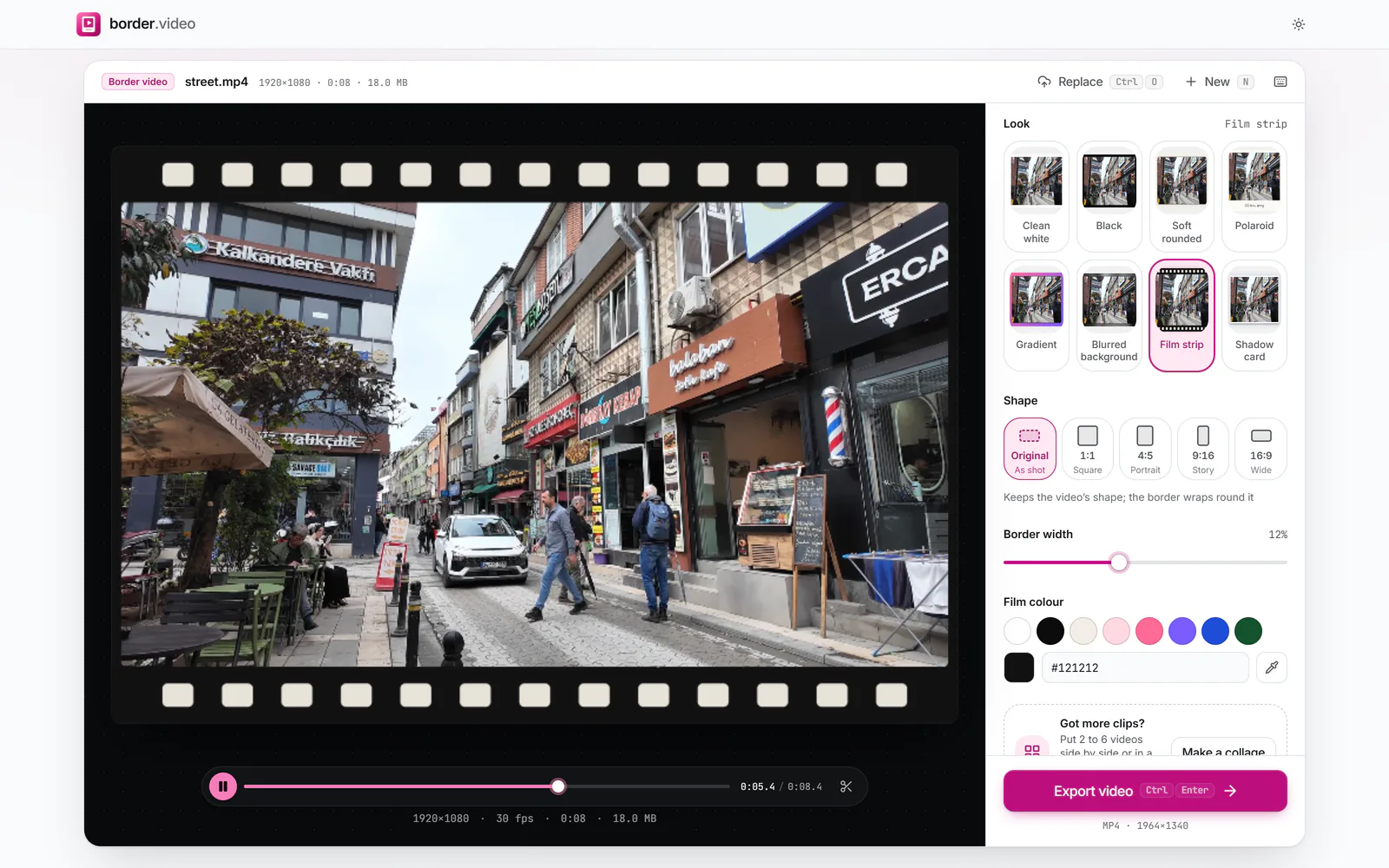 (enlarge image)
The Film strip look.
Caption text is drawn on your device only. It is never sent to us or recorded in analytics.
To put several clips inside one frame, press Make a collage under the looks. Collage mode keeps your border colour and roundness and arranges 2 to 6 videos side by side or in a grid.
Choose the Polaroid look. It adds an off-white frame with a deep bottom edge; type in Caption to write under the picture.
Yes. Under More options, Caption has four fonts: Sans, Serif, Mono and Hand. Hand uses a handwriting-style font installed on your device, so it can look slightly different from one computer or phone to another.
Not as a picture overlay. The frames here are drawn borders: colour, gradient, blur, film strip, padding, shadow and outline.
Yes. Every frame’s colour can be changed under Border colour (or Film colour for the film strip).
No. The frame is added round the picture, so the whole video stays visible.