Can a video have transparent rounded corners?
Not in MP4: the format has no transparency, so the corners are filled with your border colour. Match it to the background the video will sit on.
Free · runs in your browser
Soften a clip’s hard edges with rounded corners, then set it on a border, a gradient or a blur. The curve is part of the video, so it shows everywhere.
To add rounded corners to a video, open it above: this page starts with Soft rounded, which rounds the corners and sets the clip on a warm off-white border with a light shadow. For more or less curve, open More options and drag Corner radius. Then press Export video.
Video files are always rectangles, so “rounded” really means the corners are cut away and the border colour shows through. That is why the corners need a border behind them; pick a colour that matches where the video will sit, such as white for a light web page or your brand colour for a slide.
Drop it on the tool. This page starts with Soft rounded.
Open More options and drag Corner radius: 2 to 4% is subtle, 8 to 12% matches phone app icons, 50% makes a pill or a circle.
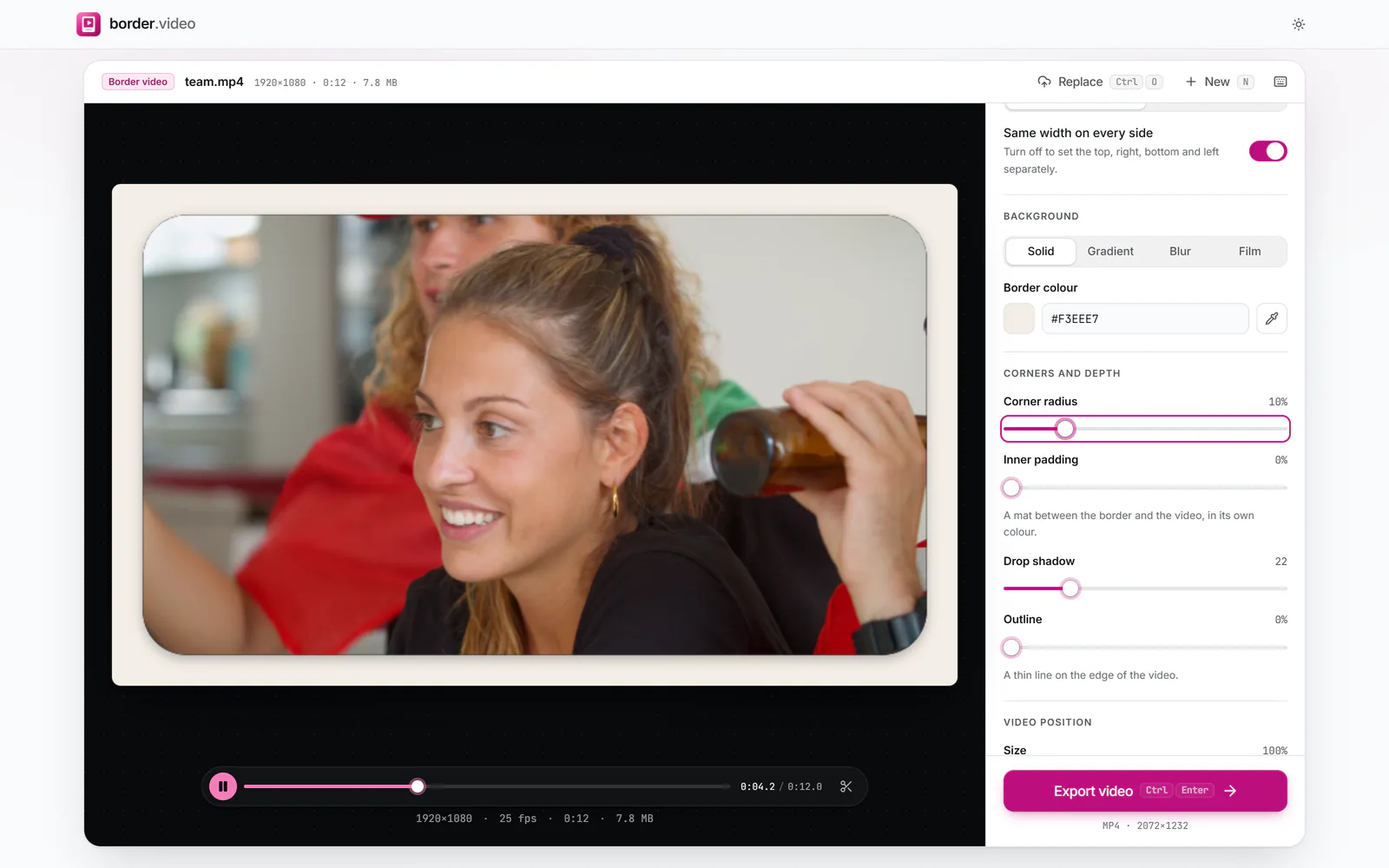 (enlarge image)
Drag Corner radius under More options.
Change Border colour, or switch Background to Gradient or Blur. Set Border width to 0% for corners with no visible frame.
Press Export video, then Download video.
Set Border width to 0% and only the corners change: the four small areas outside the curve take the border colour. Choose a colour that matches the page or slide the video will sit on, and it will look as if the video itself has rounded corners. MP4 has no transparency, so a colour is always needed there.
Corner radius is a percentage of the framed video’s shorter side, so the same setting gives the same look on a landscape and a portrait clip. At 50% the shorter sides become full semicircles: a pill shape on a rectangle and a circle on a square video.
With Inner padding, the padding takes the outer curve and the video inside gets a slightly tighter one, so the two edges stay parallel, the way a mounted print looks.
Not in MP4: the format has no transparency, so the corners are filled with your border colour. Match it to the background the video will sit on.
Set Shape to 1:1 and Corner radius to 50%. The video becomes a circle on your border colour.
Only the tiny areas outside the curve are hidden. The rest of the picture is untouched.
Yes. Leave Shape on Original and set Border width to 0%: the output has the same dimensions as the source.
Yes. They are part of every frame of the video, so every player shows them.