How do I make a horizontal video square without cutting it off?
Set Shape to 1:1. The full width fits inside the square and the space above and below becomes border, in the colour or blur you choose. Nothing is cropped.
Free · runs in your browser
Fit the whole frame inside a square canvas and fill the gaps with white, any colour or a soft blur. Your video stays on your device the whole time.
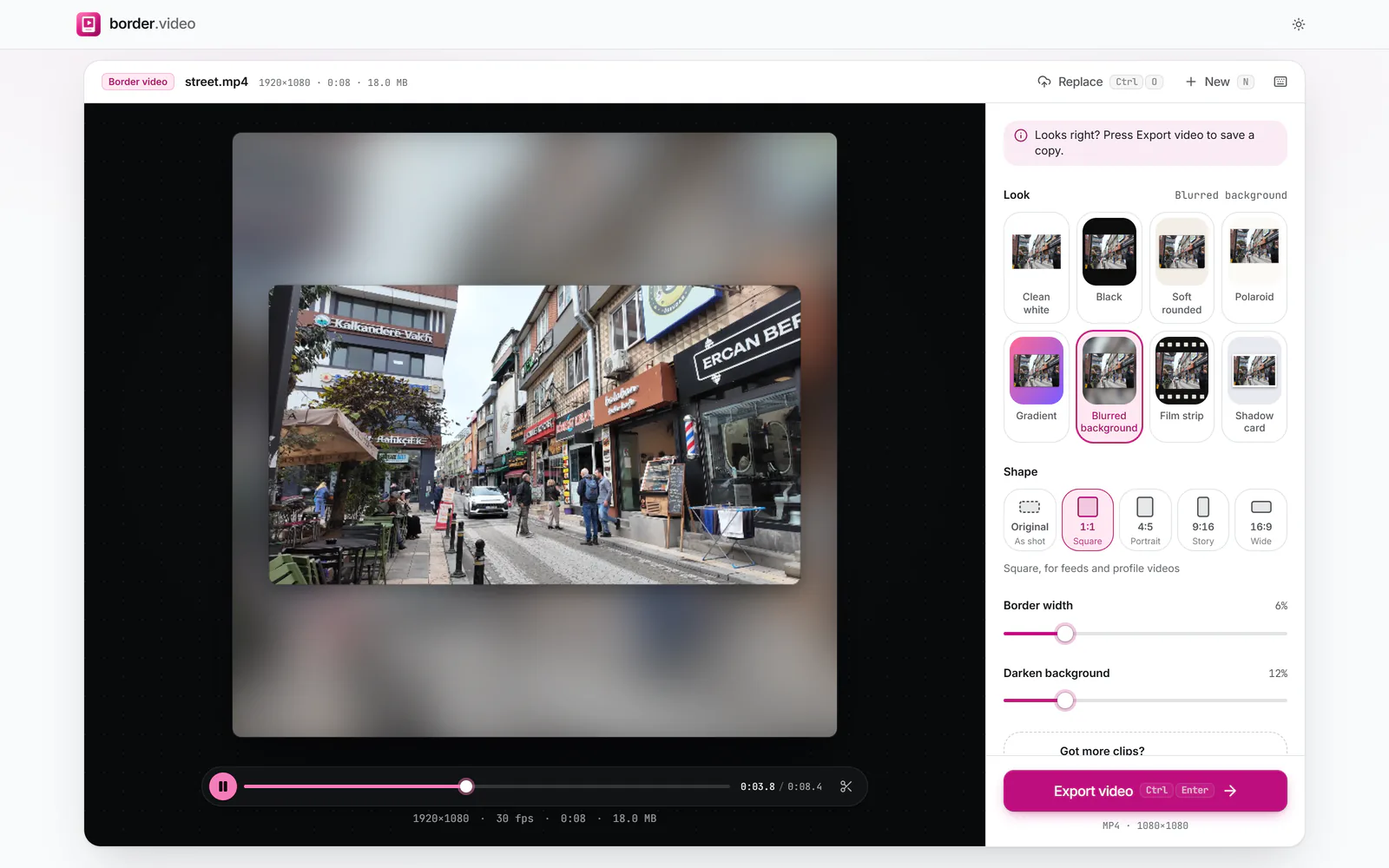
To make a video square without cropping, open it above with Shape set to 1:1 (this page starts there). The whole picture is scaled to fit inside a square canvas and the empty bands above and below, or at the sides, become border. Pick a colour, a gradient or Blurred background for those bands, then press Export video.
Cropping to square throws away a third of a widescreen shot, often the part that mattered. Padding keeps everything and gives you a tidy square that sits evenly in a grid or a chat. The square is as wide as your video’s shorter side, so a 1080p clip becomes 1080×1080, the size most apps expect.
 (enlarge image)
The whole frame in a 1:1 square, padded with Blurred background.
Drop your clip on the tool. With this page, Shape is already 1:1.
Pick a look: Clean white or Black for a classic frame, Gradient for colour, or Blurred background to fill the bands with a soft copy of the clip.
Border width sets the space around the picture. Set it to 0% for a square with no border except the bands the shape needs.
Press Export video and download the square MP4.
Most phone editors make a video square by cropping: they cut the sides off a landscape shot. That works when the subject is in the middle and nothing important happens at the edges. Padding, which is what this tool does, keeps the whole frame and adds space instead. It is the better choice for wide scenery, text and screen recordings, group shots, and anything where cutting would lose part of the story.
If you do want the picture to fill more of the square, raise the video’s Size under More options only so far as it fits, or reduce Border width. The tool never crops, so the whole frame always stays visible.
Whichever you choose, the same look shows on every frame, and you can drag the video up or down inside the square (or use Top to bottom) to leave room for a caption.
A 1:1 square from a 1080p clip comes out at 1080×1080, from a 720p clip at 720×720, and from 4K at 2160×2160. Use Export settings → Size to bring a 4K square down to 1080 if a platform or messenger prefers smaller files. Square works well for Facebook and LinkedIn feeds, WhatsApp status previews and profile grids; for the tallest feed post on Instagram, use the 4:5 Instagram frame instead.
Set Shape to 1:1. The full width fits inside the square and the space above and below becomes border, in the colour or blur you choose. Nothing is cropped.
Its sides equal your video’s shorter side: 1080×1080 from 1080p, 720×720 from 720p. You can cap it smaller under Export settings.
Yes. A portrait clip is fitted by its height and the bands appear at the left and right instead.
Choose Blurred background so the bars are filled with a soft copy of the video, or pick a colour that matches your footage under Border colour.
Only a little: the video is re-encoded and, in a square, a landscape picture is shown at the square’s width. Set Quality to High under Export settings to keep it as sharp as possible.
Yes. Drag the picture in the preview, or use Top to bottom under More options.