How do I post a full video on Instagram without it being cropped?
Frame it in Instagram’s shape before you post: Shape 4:5 for the feed or 9:16 for Reels. The whole picture fits inside the border, so Instagram has nothing left to crop.
Free · runs in your browser
Fit the whole clip in Instagram’s 4:5 post shape or a full-screen 9:16 Reel, framed in white, colour or blur, so nothing important gets cut.
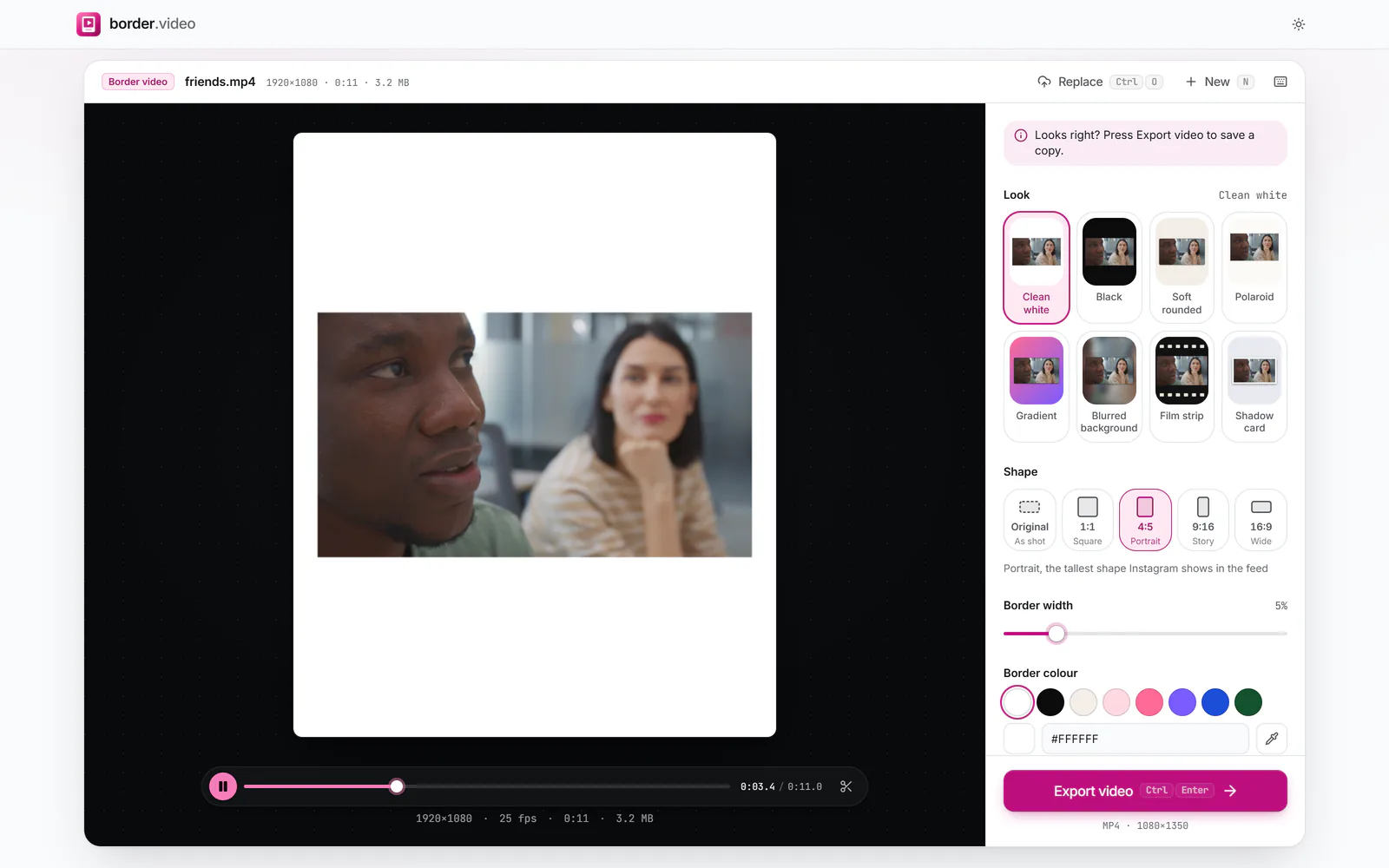
To post a video on Instagram without cropping, give it a border in the shape Instagram wants. Open your clip above (this page starts on 4:5 with Clean white), choose a look, then press Export video. The whole frame sits inside the border, so the app has nothing to trim.
Instagram shows feed videos at up to 4:5 tall and Reels and Stories at 9:16. A landscape clip posted as it is either appears small in the feed or gets cropped when you zoom it to fill. Framing it at 4:5 makes it take up as much of the feed as Instagram allows, with a clean white edge many creators use as a signature look.
Drop it on the tool. On this page Shape is already 4:5, the tall feed-post shape.
Keep 4:5 for a feed post, or choose 9:16 under Shape for a Reel or a Story.
 (enlarge image)
4:5 for a feed post; 9:16 for Reels and Stories.
Clean white is the classic Instagram border. Blurred background fills the space with the clip itself; Gradient adds colour.
Press Export video. On a phone, tap Share and choose Instagram, or save it to Photos and post from the app.
Your profile grid shows a cropped thumbnail of each post, so keep the subject roughly central. Moving the video inside the frame (drag the preview, or Top to bottom under More options) helps when a caption or logo needs space.
Accounts that use a white border on every post usually keep three things the same: the colour, the width and the shape. Use the same Border width each time (5% is a good start) and the same shape, and your grid will look deliberate. If pure white is too stark against Instagram’s dark mode, try the off-white swatch, or the Shadow card look, which puts the video on a white card over pale grey.
For a lower-third caption, the Polaroid look adds a deep bottom edge with optional text in four fonts.
Instagram re-compresses everything you post. Give it a clean source: set Quality to High under Export settings and keep the size at 1080 on the short side, which is what Instagram displays. A 4K export only adds upload time, because Instagram scales it down anyway.
Frame it in Instagram’s shape before you post: Shape 4:5 for the feed or 9:16 for Reels. The whole picture fits inside the border, so Instagram has nothing left to crop.
1080×1350 pixels when your clip is 1080p. A 720p clip gives 720×900; you can set the size under Export settings.
To keep the whole frame visible, to make a landscape clip fill more of a tall feed, and for a consistent, gallery-like look across a profile.
Yes. Choose Blurred background. The space around the clip is filled with a soft, moving copy of it, which looks full rather than framed.
No. The border is part of the video’s picture, so Instagram shows it as it is.
Yes, in Safari: open this page, choose the clip, export, then tap Share and choose Instagram or Save Video.