How do I convert a horizontal video to vertical without cropping?
Set Shape to 9:16. The full horizontal picture fits across the width and the space above and below is filled with a blur, a colour or black.
Free · runs in your browser
Put a landscape clip in a full-screen vertical frame, with the whole picture visible over a soft blur or a colour of your choice.
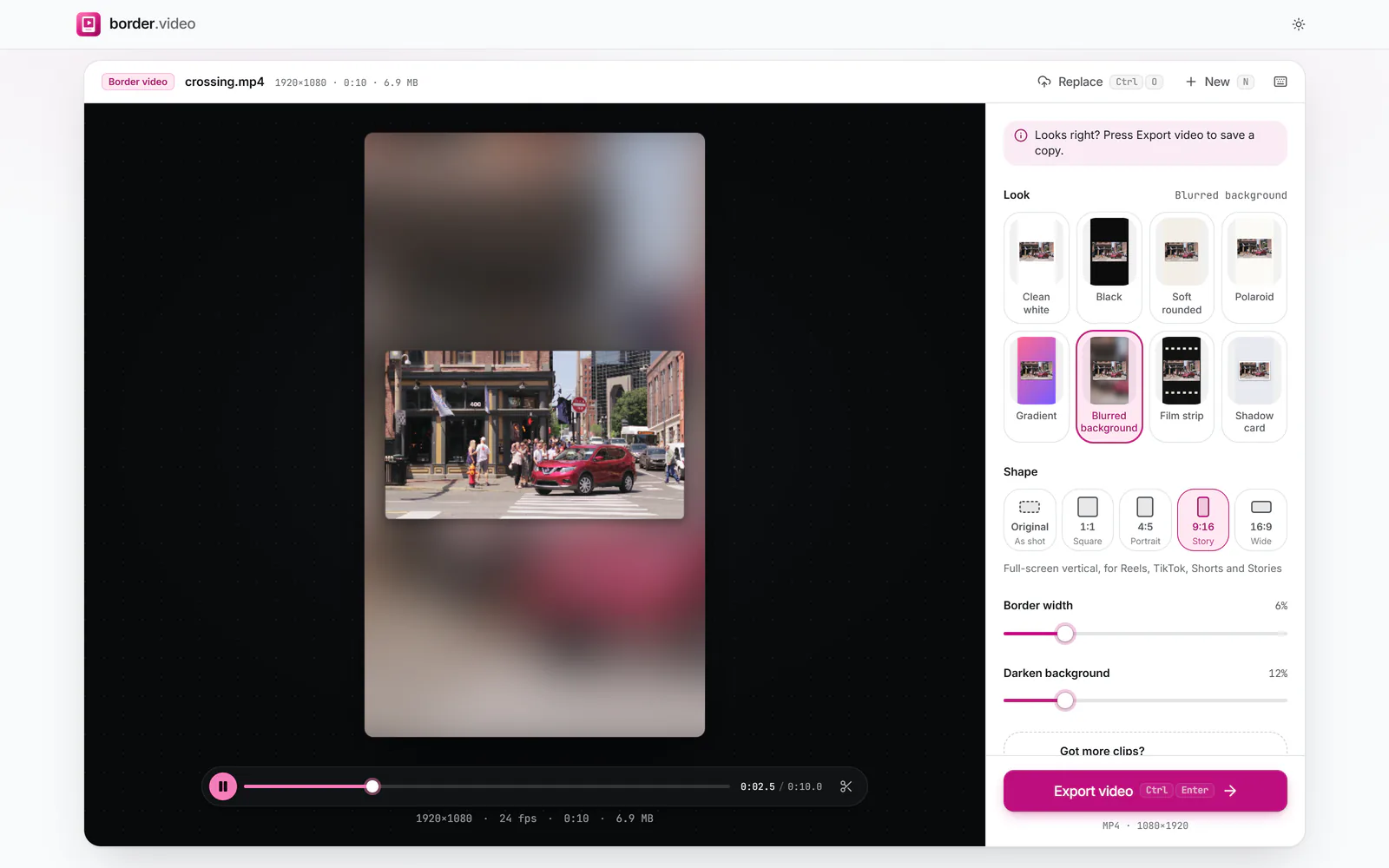
To fit a video to 9:16 without cropping, open it above: this page starts with Shape set to 9:16 and the Blurred background look. The full landscape picture sits in the middle of a tall canvas and a soft, enlarged copy of the clip fills the space above and below. Press Export video when it looks right.
Short-video apps fill the phone screen with 9:16. Upload a landscape clip as it is and the app either shows it tiny with black bars or crops the sides away. Framing it yourself means you decide what fills the space, and every part of the original frame stays on screen.
 (enlarge image)
The landscape picture stays whole; the blur fills the rest of the 9:16 frame.
Drop it on the tool. Shape is already 9:16 on this page.
Keep Blurred background, or pick Black, Clean white or Gradient. With blur, raise Darken background to make the picture stand out.
Drag the picture up or down in the preview (or use Top to bottom under More options) to leave room for on-screen text.
Lower Border width to let the video use the full width of the screen. It never goes past the edges.
Press Export video and download a 1080×1920 MP4 from a 1080p source.
Black bars are the plainest option and keep attention on the picture, but they can look like a mistake in a feed full of full-screen clips. A blurred background fills the screen with the clip’s own colours and movement, which is why broadcasters use it for phone footage. A solid or gradient colour suits branded content, and leaves clean space for titles.
If the blur competes with the video, raise Darken background to 25 to 40%. If the picture looks small, reduce Border width: at 0% the landscape frame spans the full width of the vertical canvas.
TikTok, Reels and Shorts all lay their own buttons, captions and account names over the right edge and the bottom of the screen. A landscape clip in the middle of a 9:16 frame usually avoids them, but text you add in your edit should sit in the upper part of the space above the picture, or high inside the picture itself.
The vertical canvas is as wide as your video’s shorter side: a 1080p clip gives 1080×1920, a 4K clip 2160×3840. Most apps show 1080×1920, so choose 1080p under Export settings → Size for 4K sources to save upload time. The picture inside is scaled to the screen width, so a 1080p landscape clip is shown about 1080 pixels wide; use High quality to keep fine detail.
Set Shape to 9:16. The full horizontal picture fits across the width and the space above and below is filled with a blur, a colour or black.
Usually 1080×1920. Here the canvas’s width equals your clip’s shorter side, so a 1080p source gives exactly that.
The tool fits the video without cropping, so the most it can fill is the full width. Reduce Border width to 0% to get there.
Yes. The preview uses the same drawing code as the export, so the blur, darkening and position are identical.
Yes. Shorts, Reels, TikTok and Stories all use 9:16.
No. It is processed in your browser and saved straight to your device.