How do I get rid of black bars on a vertical video?
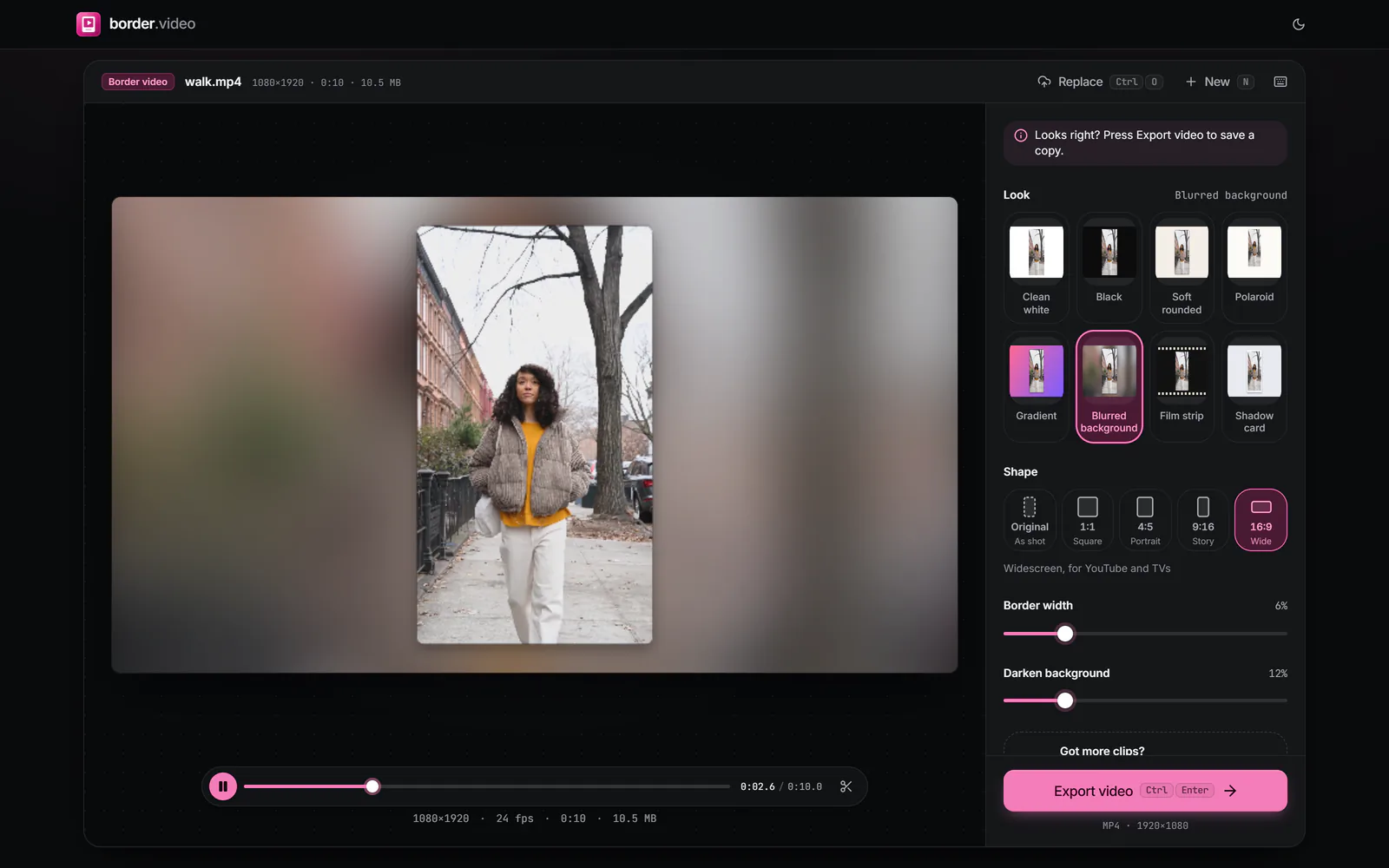
Frame it in 16:9 with the Blurred background look. The space where the bars were is filled with a soft copy of the clip.
Free · runs in your browser
Replace black bars with a soft, moving blur of your own footage, so a phone clip fills a widescreen frame without being cropped.
To add a blurred background to a video, open it above: this page starts with the Blurred background look in a 16:9 frame. Your clip sits in the middle at full height, and a blown-up, softened copy of the same footage fills the space on either side. Press Export video to save it.
It is the standard fix for vertical phone footage in a widescreen video, and it works the other way round too: choose 9:16 to put a landscape clip in a vertical frame, or 1:1 for a square. The blur moves with the picture, so the frame never looks static.
 (enlarge image)
A portrait clip in 16:9 with Blurred background instead of black bars.
Drop in the portrait or square clip. This page starts on 16:9 with Blurred background.
Use Darken background to calm a bright or busy blur, so the sharp picture in the middle stands out.
Border width sets the margin round the sharp picture; Corner radius and Drop shadow under More options lift it off the blur.
Press Export video and download the MP4.
Black bars leave half of a widescreen frame empty. A blurred copy of the clip fills that space with the same colours and movement, so the eye reads one picture rather than a small video in a box. Because it is out of focus, it doesn’t compete with the sharp video in the middle.
Here the blur is made from a small, softened copy of each frame, then stretched to fill the canvas. That keeps it smooth, gives the same result at every output size, and keeps exports quick.
Blur suits most footage, but not all. Fast, flashing or very dark clips can make the background distracting or muddy; switch to Gradient or a solid colour under Background. For a cinema feel, the Film strip look uses dark bands with sprocket holes instead.
Frame it in 16:9 with the Blurred background look. The space where the bars were is filled with a soft copy of the clip.
Darker, yes: use Darken background, from 0 to 60%. At 0% the blur keeps the clip’s own brightness.
The blur strength is fixed so it always reads as a background. If you want a clearer backdrop, use a gradient or a solid colour instead.
Hardly. The blur is drawn from a small copy of each frame, so it adds very little work.
Yes. Blurred background works with every shape, including Original, where it fills the border round the clip.